 DIMENSI
Smart Features Gmail: Kawal Ciri Pintar dan Gemini, Tetapi Ikut Dasar Tempat Kerja
Setiap hari anda membuka Gmail. Anda nampak e-mel disusun mengikut kategori, cadangan ayat muncul semasa menaip, dan butang balasan pantas sedia untuk ditekan. Semua ini terasa mudah dan membantu.
Tetapi ramai orang tidak pernah bertanya bagaimana ciri ini berfungsi. Ciri pintar seperti ini menggunakan kandungan dan aktiviti anda dalam Gmail. Kebanyakan pengguna tidak pernah membuka tetapannya, lalu membiarkannya ikut tetapan asal tanpa faham kesannya.
Gmail sebenarnya ada tetapan “Smart features” yang boleh anda hidupkan atau matikan sendiri. Dalam artikel ini, kami terangkan apa fungsinya, cara mencarinya di komputer, dan perkara yang anda perlu tahu sebelum menukar apa-apa.
Apa fungsinya
Tetapan “Smart features” ialah kawalan dalam Gmail yang menentukan sama ada ciri pintar dan bantuan AI (kecerdasan buatan) boleh menggunakan kandungan anda. Tetapan ini disediakan oleh Google.
Menurut laman bantuan Google, Gmail ada tiga tetapan berasingan:
- Smart features in Gmail, Chat, and Meet: Menggunakan kandungan dan aktiviti anda untuk ciri seperti pengkategorian peti masuk, Smart Compose (cadangan ayat semasa menaip), Smart Reply (cadangan balasan pantas) dan kad ringkasan.
- Smart features in Google Workspace: Termasuk meminta Gemini (pembantu AI Google) meringkaskan kandungan, membuat draf dan mencari maklumat penting.
- Smart features in other Google products: Hanya untuk akaun peribadi. Contohnya, tempahan restoran dalam Maps dan cadangan dalam Wallet.
Ciri utama
- Tiga suis berasingan: Setiap tetapan berfungsi sendiri. Jika anda matikan satu, hanya ciri di bawah tetapan itu yang berhenti.
- Kawalan Gemini: Anda boleh menentukan sama ada Gemini dalam Google Workspace boleh membantu meringkas dan membuat draf daripada kandungan anda.
- Terpakai pada semua peranti: Perubahan terpakai pada semua peranti yang log masuk ke akaun anda.
- Sesetengah ciri ada kawalan sendiri: Ciri seperti ringkasan perbualan dan Smart Reply dalam Chat masih berfungsi kerana ia dikawal oleh tetapan lain.
- Kenyataan Google tentang data: Google menyatakan tetapan ini tidak mengubah amalan pengendalian data asasnya. Google juga menulis, “Generative AI doesn’t change these commitments”.
Harga
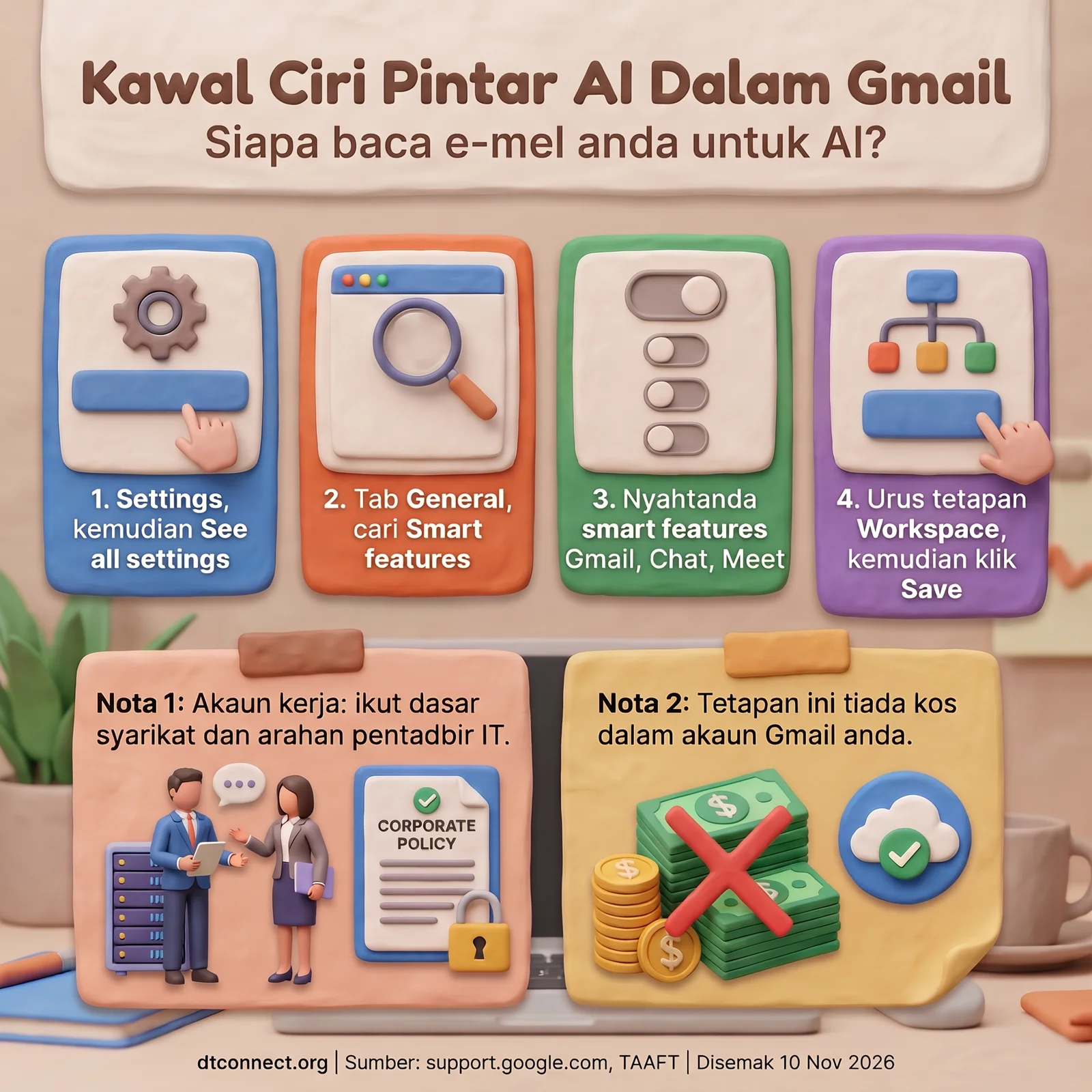
Tetapan ini bukan produk berasingan. Ia sebahagian daripada akaun Gmail anda. Laman rasmi Gmail menyebut “your no-cost Gmail account”, iaitu akaun Gmail peribadi tanpa kos. Jadi, anda tidak perlu membayar apa-apa untuk menyemak atau menukar tetapan ini.
Harga pelan Google Workspace (versi berbayar untuk syarikat dan organisasi) tidak ditunjukkan di laman yang kami semak. Jika anda menggunakan akaun kerja, rujuk pihak IT organisasi anda.
Harga disemak pada 10 November 2026 dan mungkin berubah.
Cara bermula
- Buka Gmail di komputer. Klik Settings (ikon gear), kemudian klik See all settings.
- Di tab General, cari bahagian “Smart features”.
- Jika anda mahu mematikannya, nyahtanda “Turn on smart features in Gmail, Chat, and Meet”.
- Masih di tab General, cari “Google Workspace smart features”, kemudian klik “Manage Workspace smart feature settings”.
- Matikan tetapan yang anda kehendaki, kemudian klik Save.
Had dan perkara yang perlu diberi perhatian
Ciri kegemaran mungkin hilang. Jika anda matikan “Smart features in Gmail, Chat, and Meet”, ciri seperti Smart Compose, Smart Reply dan pengkategorian peti masuk akan berhenti. Fikirkan dahulu ciri mana yang anda benar-benar guna.
Aplikasi telefon mungkin lambat menunjukkan perubahan. Walaupun perubahan terpakai pada semua peranti, aplikasi mudah alih mungkin tidak menunjukkan sebahagian perubahan yang dibuat di komputer. Lebih mudah jika anda membuat perubahan di komputer.
Tidak semua ciri berhenti. Sesetengah ciri ada kawalan sendiri, contohnya ringkasan perbualan dan Smart Reply dalam Chat. Ciri skrin seperti perkongsian tangkapan skrin juga mungkin kekal tersedia walaupun tetapan “other Google products” dimatikan.
Akaun kerja atau sekolah. Jika anda menggunakan akaun yang diberi oleh majikan atau sekolah, ikut dasar organisasi dan arahan pentadbir IT anda sebelum menukar tetapan.
Tetapan “other Google products” untuk akaun peribadi sahaja. Menurut Google, tetapan ketiga ini hanya untuk akaun peribadi.
Bahasa Melayu. Laman yang kami semak tidak menyatakan sama ada ciri pintar ini menyokong bahasa Melayu. Nama menu dalam artikel ini dikekalkan dalam bahasa Inggeris seperti yang tertera di skrin.
Sesuai untuk siapa
Panduan ini sesuai untuk sesiapa sahaja yang menggunakan Gmail setiap hari, terutamanya pekerja pejabat, guru dan ibu bapa yang mahu tahu bagaimana kandungan e-mel mereka digunakan oleh ciri pintar.
Ia juga berguna jika anda selalu menerima e-mel yang mengandungi maklumat sensitif dan mahu membuat pilihan sendiri, bukan hanya ikut tetapan asal.
Kesimpulan
Tetapan “Smart features” dalam Gmail memberi anda kawalan ke atas ciri pintar dan bantuan Gemini yang menggunakan kandungan anda. Ada tiga tetapan berasingan, dan setiap satu boleh dihidupkan atau dimatikan sendiri. Tiada kos untuk menyemaknya. Luangkan lima minit hari ini untuk membuka Settings, kemudian See all settings, dan buat pilihan yang sesuai dengan keperluan anda serta dasar tempat kerja anda.
Sumber
- Google, Gmail Help, Smart features: support.google.com
- Google Workspace, Gmail: workspace.google.com
Artikel ini bebas dan tidak ditaja. Ciri dan harga disemak pada 10 November 2026 dan mungkin berubah.
Read this article in English
You open Gmail every day. You see emails sorted into categories, sentence suggestions appear as you type, and quick reply buttons are ready to tap. All of this feels easy and helpful.
But many people never ask how these features work. Smart features like these use your content and activity in Gmail. Most users have never opened the settings, and leave them on the default without understanding the effect.
Gmail actually has “Smart features” settings that you can turn on or off yourself. In this article we explain what they do, how to find them on a computer, and what you should know before changing anything.
What it does
The “Smart features” settings are controls in Gmail that decide whether smart features and AI (artificial intelligence) help can use your content. These settings are provided by Google.
According to Google’s help page, Gmail has three separate settings:
- Smart features in Gmail, Chat, and Meet: Uses your content and activity for features such as inbox categorisation, Smart Compose (sentence suggestions as you type), Smart Reply (quick reply suggestions) and summary cards.
- Smart features in Google Workspace: Includes asking Gemini (Google’s AI assistant) to summarise content, write drafts and find key information.
- Smart features in other Google products: For personal accounts only. For example, restaurant reservations in Maps and suggestions in Wallet.
Key features
- Three separate switches: Each setting works on its own. If you turn one off, only the features under that setting stop.
- Gemini control: You can decide whether Gemini in Google Workspace can help summarise and draft from your content.
- Applies to all devices: Changes apply to all devices signed in to your account.
- Some features have their own controls: Features such as conversation summaries and Smart Reply in Chat still work because they are controlled by other settings.
- Google’s statement on data: Google states that these settings do not change its core data handling practices. Google also writes, “Generative AI doesn’t change these commitments”.
Pricing
These settings are not a separate product. They are part of your Gmail account. The official Gmail page mentions “your no-cost Gmail account”, meaning a personal Gmail account at no cost. So you do not need to pay anything to check or change these settings.
Google Workspace plan prices (the paid version for companies and organisations) were not shown on the pages we checked. If you use a work account, check with your organisation’s IT team.
Prices were checked on 10 November 2026 and may change.
Getting started
- Open Gmail on a computer. Click Settings (the gear icon), then click See all settings.
- In the General tab, find the “Smart features” section.
- If you want to turn it off, untick “Turn on smart features in Gmail, Chat, and Meet”.
- Still in the General tab, find “Google Workspace smart features”, then click “Manage Workspace smart feature settings”.
- Turn off the settings you want, then click Save.
Limits and things to watch
Favourite features may disappear. If you turn off “Smart features in Gmail, Chat, and Meet”, features such as Smart Compose, Smart Reply and inbox categorisation will stop. Think first about which features you really use.
The phone app may be slow to show changes. Although changes apply to all devices, the mobile app may not show some changes made on a computer. It is easier to make changes on a computer.
Not all features stop. Some features have their own controls, for example conversation summaries and Smart Reply in Chat. Screen features such as screenshot sharing may also remain available even if the “other Google products” setting is turned off.
Work or school accounts. If you use an account given by your employer or school, follow your organisation’s policy and your IT administrator’s instructions before changing settings.
The “other Google products” setting is for personal accounts only. According to Google, this third setting is only for personal accounts.
Malay language. The pages we checked do not state whether these smart features support Malay. Menu names in this article are kept in English as shown on screen.
Who it is for
This guide suits anyone who uses Gmail every day, especially office workers, teachers and parents who want to know how their email content is used by smart features. It is also useful if you often receive emails with sensitive information and want to make your own choice, not just follow the default settings.
Conclusion
The “Smart features” settings in Gmail give you control over smart features and Gemini help that use your content. There are three separate settings, and each one can be turned on or off on its own. There is no cost to check them. Take five minutes today to open Settings, then See all settings, and make a choice that suits your needs and your workplace policy.
Sources
- Google, Gmail Help, Smart features: support.google.com
- Google Workspace, Gmail: workspace.google.com
This article is independent and not sponsored. Features and prices were checked on 10 November 2026 and may change.